Free password managers saved me from a real disaster. For many years I stored all of my passwords in a simple Notepad document on my desktop…
I’ll be frank with you. For many years I stored all of my passwords in a simple Notepad document located on my desktop. I realize now that was pretty foolish. One day my computer crashed and I had to reformat it. Everything gone. Every login, every account. That was a rough week.
You’re probably here for a similar reason. Or maybe you’re just sick of hitting “forgot password” every single week. Either way, a free password manager just kills that whole problem. And no, you don’t have to pay — the free ones are genuinely good now.
I didn’t just read the feature pages on these. I actually used them for a few weeks. Here’s what stuck.
What a Password Manager Actually Does
Plain version: it remembers all your passwords so you don’t have to. You set one master password, and everything else lives behind it, locked up. You open a site, it fills in the login for you. That’s it.
The real benefit is you can use a long, different password for every account without memorizing any of them. That alone makes you way harder to hack. Most of these tools generate random passwords too, so you finally stop reusing “ali12345” on ten different sites.
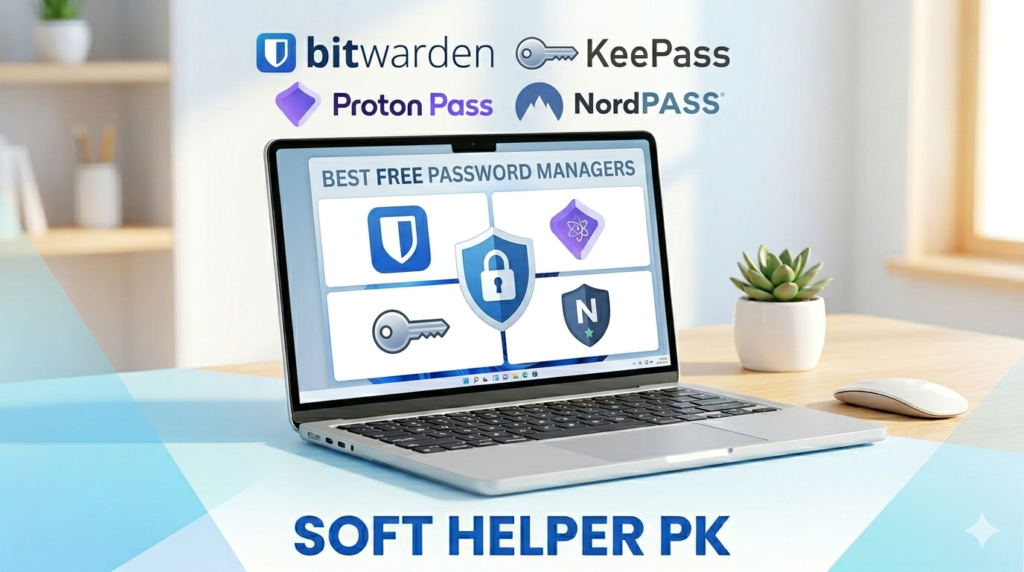
The Best Free Password Managers I’d Recommend
Bitwarden — My Top Pick
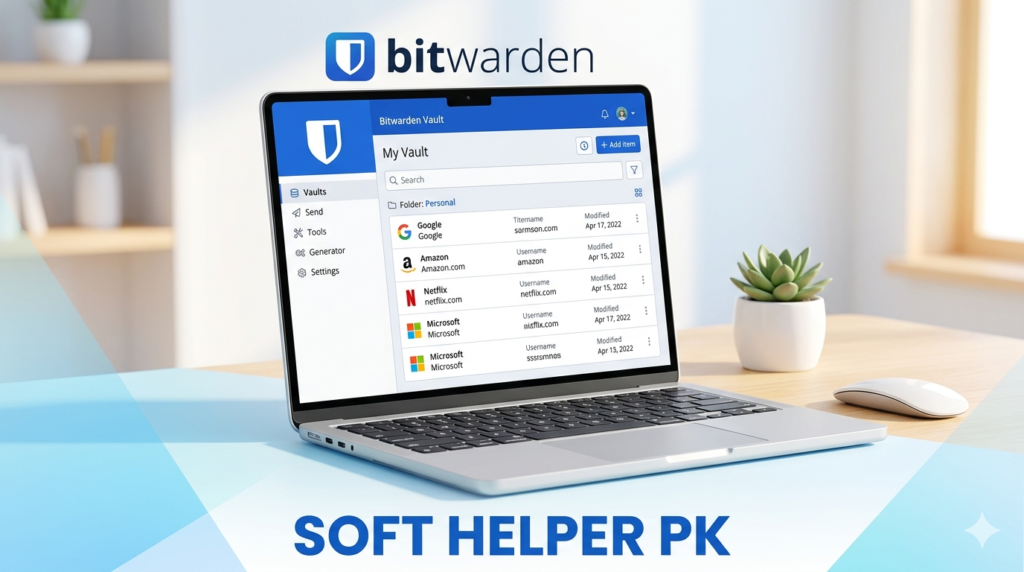
If I could only keep one, this is it. The free plan is almost too generous — unlimited passwords, unlimited devices, syncs everywhere. Phone, laptop, browser, doesn’t matter.
It’s open-source too, which means security people can dig through the code themselves. That builds a lot of trust. I’ve run it daily for months and it just sits there and works. No annoying “upgrade now” popups every five minutes. You can grab it straight from Bitwarden.
The paid tier mostly adds encrypted file storage. But for plain password management? The free version is more than enough.
Proton Pass — For the Privacy Crowd
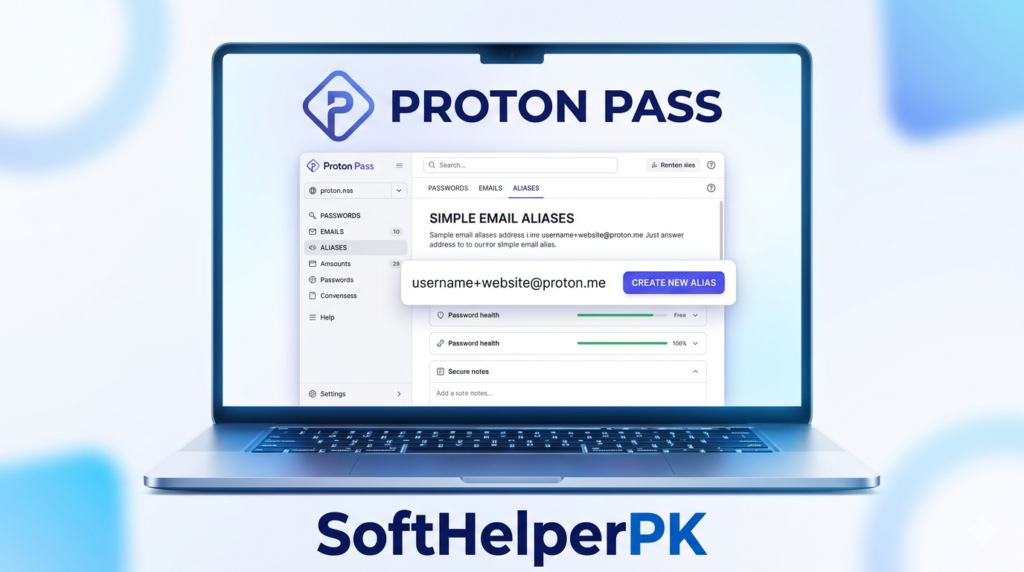
Proton is the same company behind that well-known encrypted email service, so privacy is baked into them. Proton Pass showed up a little late but caught up fast.
The free plan covers unlimited passwords and devices, plus one neat trick — hide-my-email aliases. So you can sign up to a sketchy site without handing over your real address. Clean interface, no clutter. If you already like staying a little under the radar online, this one fits right in.
KeePass — For the Control Freaks
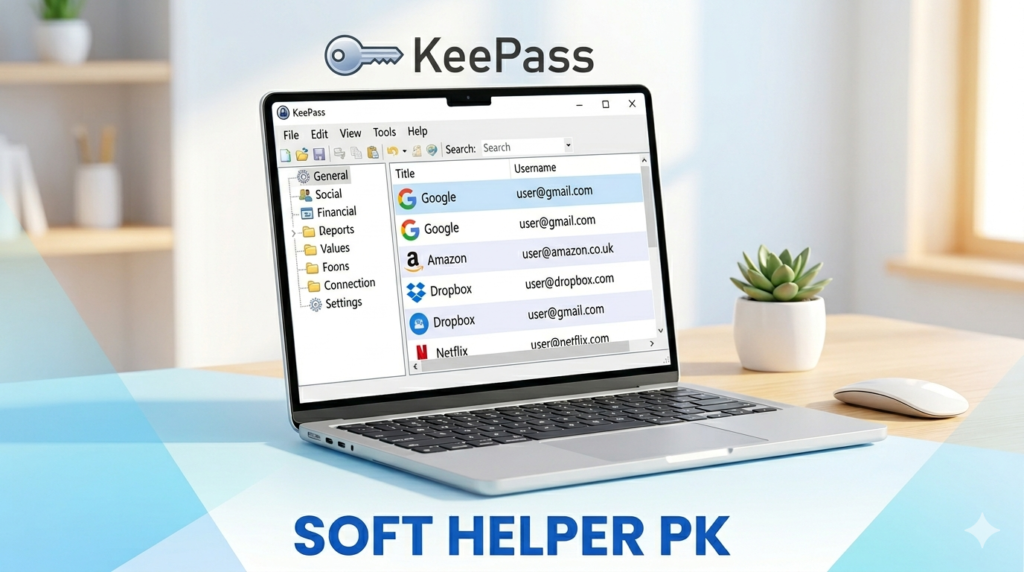
Let me be straight: KeePass is ugly. It looks like software from 2008. But it’s completely free, fully offline, and you decide where your data lives.
No cloud, no company holding your vault — just an encrypted file on your own device. Some people find that comforting, some find it a pain. If you’re a bit technical and a bit paranoid (the healthy kind), nothing beats KeePass. For everyone else, it might feel like too much manual work.
NordPass Free — Simple and Clean
The issue here is that only one device can be logged into using the free version. It’s a slight annoyance, but overall, it’s a great service.
If you have basic requirements and use just one device, you won’t find anything better. Autofill function works great, and configuration will take about two minutes.
How to Pick the Right One
Don’t overthink this. Best all-rounder that costs nothing — Bitwarden. Privacy is your main thing — Proton Pass. You want full offline control — KeePass. You just want something simple on one device — NordPass.
Any of these free password managers beats reusing one password everywhere.
The point is to pick any of them and actually start using it. The worst password manager on this list still beats reusing one password everywhere or keeping a notes file like I used to.
A Few Things Before You Start
Make your master password long but memorable — a random sentence works great. It is written just once in writing and saved somewhere secure in your house, since when you lose that master password there will be no way to retrieve it. That is the cost of true safety.
If the tool offers two-factor authentication, turn it on. It adds one extra step but makes your vault almost impossible to break into.
If you’re thinking about your PC’s overall safety, it’s worth pairing a password manager with a good antivirus — I went through my favorites in this guide on free antivirus software. And if your machine has felt sluggish lately, speeding up a slow PC makes a bigger difference than most people expect.
Final Thoughts
I get it — setting up a password manager feels like one more chore. But it’s honestly a 15-minute job that saves you years of headaches. Pick one from this list, import your passwords, and let it handle the boring part.
The future you — the one who never gets locked out of an account again — will thank you for it.
Pick one of these free password managers and import your passwords.