
Convert PDF to Word free — that’s exactly what I needed a few days back when a colleague sent me a file and said, “just edit this real quick.” Sounded easy. Then I opened it and remembered — right, PDFs don’t just let you start typing. Sat there for a second thinking, now what.
Then it hit me. I’ve done this before. Multiple times. Free. I just always forget which way I did it. So this time I’m writing it all down properly.
Here’s every method I actually use to convert PDF to Word free — no paid software, no Adobe subscription needed.
1. The Easiest Way — Just Use Microsoft Word Itself
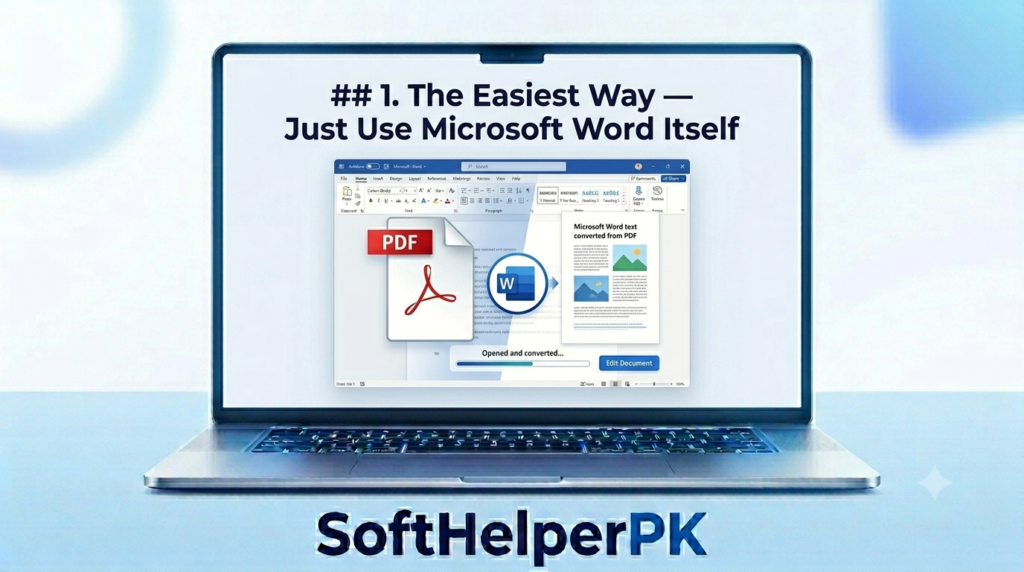
Turns out Word can open PDFs on its own. Most people have no idea.
Open Word, go to File, click Open, and select your PDF like any normal document. Word will show a quick message saying it’s converting the file — hit OK, wait a few seconds, and you’ve got an editable document.
Nothing to install, nothing to sign up for. It’s already sitting on your computer.
Fair warning though — if the PDF has heavy formatting or lots of images, things can shift around a bit. But for plain text documents? Works perfectly every time.
2. Convert PDF to Word Free with Google Docs
If you don’t have Word installed, Google Docs handles this just as well and it’s completely free.
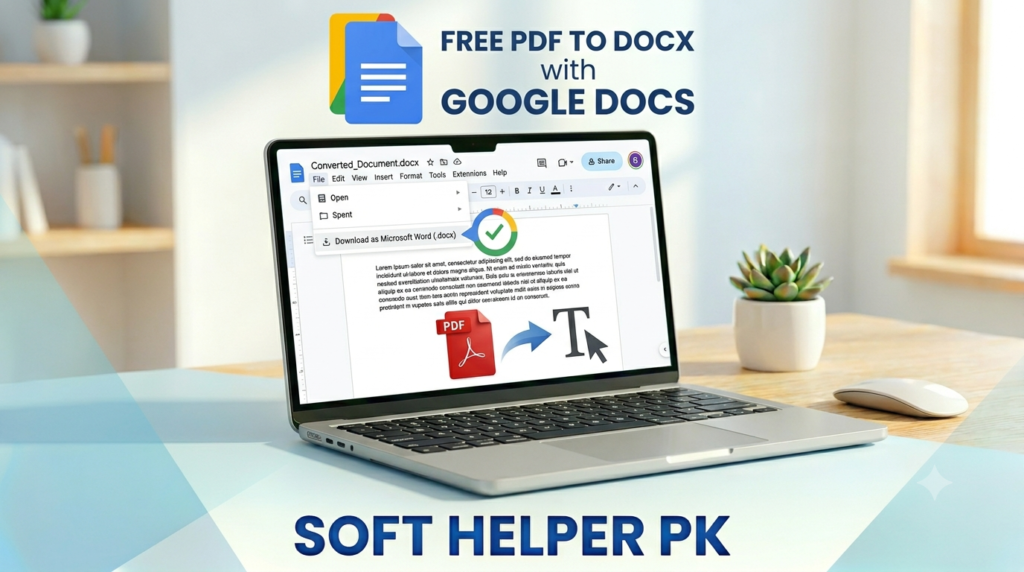
Upload the PDF to Google Drive first. Then right-click it, choose “Open with,” and pick Google Docs. It’ll open as an editable document. From there go File → Download → Microsoft Word (.docx) and you’re done.
Works on any device with a browser — laptop, phone, tablet, doesn’t matter.
Formatting-wise it’s about the same as Word. Simple documents come out clean, complex layouts can get a little messy. But for pulling out text and editing fast, this does the job.
3. Smallpdf — Fastest Way to Convert PDF to Word Free Online
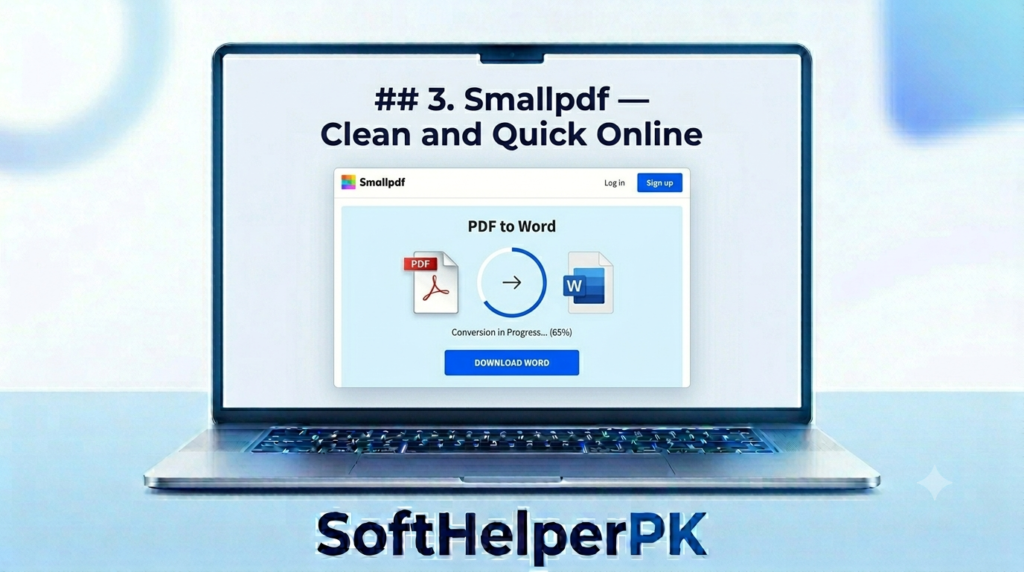
No installation, no account needed, just get it done — Smallpdf is where I go.
Head to smallpdf.com, drag your PDF in, download the Word file. That’s literally it. The free version gives you a few conversions per day which is more than enough for most people.
Formatting quality is actually a step above Word and Google Docs here, especially on more complex files. Worth knowing about when the layout actually matters.
4. iLovePDF — Another Free PDF to Word Converter Worth Bookmarking
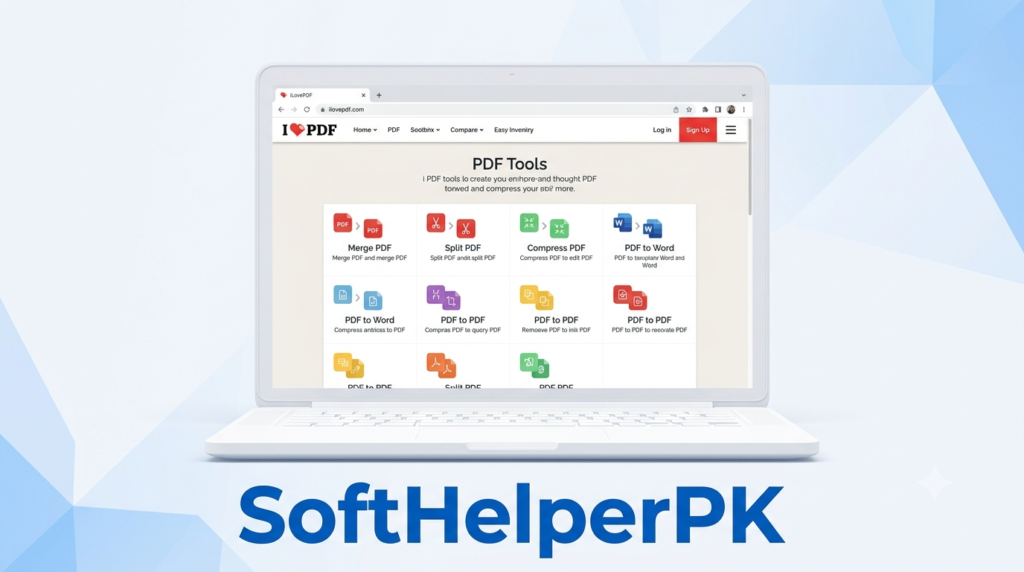
ilovepdf.com works the same way as Smallpdf. Upload, convert, download — done in about thirty seconds.
What I like about it is everything else it offers in the same place. Merge PDFs, split them, compress them — all free, all in one spot. If you deal with PDFs regularly, this one’s worth bookmarking.
5. Scanned PDF? Here’s How to Convert PDF to Word Free with OCR
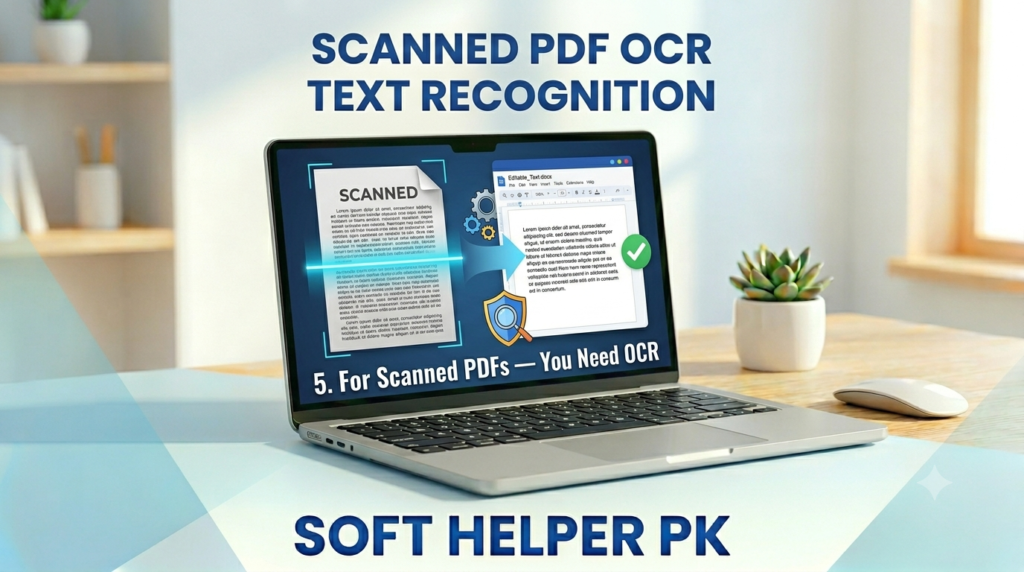
This is the one thing that catches people off guard.
If your PDF was made from a scanner or someone took a photo of a paper document, it’s basically just an image. A regular converter will open it in Word — but all you’ll get is a picture, not editable text.
For those you need OCR, which reads text out of images. The good news is both Google Docs and Smallpdf have OCR built in now. Just upload like normal and they’ll pull the text out automatically.
If the scan is blurry, expect a few typos to fix — but it still beats retyping the whole thing from scratch.
Which Method Should You Use to Convert PDF to Word Free?
Keep it simple:
- Have Word installed? Just open the PDF there — fastest option by far.
- No Word? Google Docs gets it done.
- Complex file or formatting matters? Go with Smallpdf or iLovePDF.
- Scanned document? Use Google Docs or Smallpdf — both have OCR built in.
For 90% of situations, you can convert PDF to Word free in under a minute using Word or Google Docs. The online tools are there for when the formatting really counts.
One Thing to Do After You Convert PDF to Word
Always scroll through the whole document once before you use it. Headers shift, tables break, bold text disappears. A two-minute check saves you from sending something embarrassing.
And if one tool gives you a messy result, just try another. No single converter is best for every PDF — it really depends on the file.
That’s all there is to it. Pick whichever method fits your situation and you’ll have an editable Word document in minutes — completely free.
The reminder to check tables and headers after conversion is easy to overlook when you just need a quick edit. One distinction worth adding: opening a PDF in Word costs nothing extra if you already have it, but Word itself isn’t free. I’d also avoid uploading confidential work documents to an online converter without checking my workplace’s policy first.