

Want to recover deleted files free? Sit tight, because last year this exact thing nearly gave me a heart attack.
So here’s what happened. I was cleaning my downloads folder. Too many files, total mess. I selected a chunk and hit Shift+Delete. You know, the one that skips the Recycle Bin completely. And one of those folders had a week of client work in it.
Gone. Just like that. No bin to dig through. Nothing.
I sat there for a second just staring at the screen. That cold feeling in your stomach? Yeah. That one.
But here’s the thing nobody tells you when you’re panicking: the file probably isn’t actually gone. Not yet. And you can usually get it back for free. No paid software, no shady “data recovery” guy charging you 5000 rupees.
I’ve messed around with these tools and tricks for years now. Let me just walk you through what works. In order. Try the first thing, then the next, and so on.
First, Read This Before You Touch Anything
Quick science bit. I’ll keep it short.
When you delete something, the computer doesn’t really erase it. It just puts up a little sign that says “this space is free now, use it whenever.” The actual file? Still sitting there. Waiting. Until something new lands on top of it and overwrites it.
So this is the part that matters most. Stop using that drive. Right now. Don’t install stuff, don’t save new files, don’t even browse around too much if the file was on your C drive.
Every single thing you write to that drive is a chance you lose the file forever. Speed is everything here. The faster you move, the better your odds.
How to Recover Deleted Files Free — Start With the Easy Stuff
Before you download any tool to recover deleted files free, check these. Honestly, half the time the file isn’t even deleted the way you think.
Check the Recycle Bin
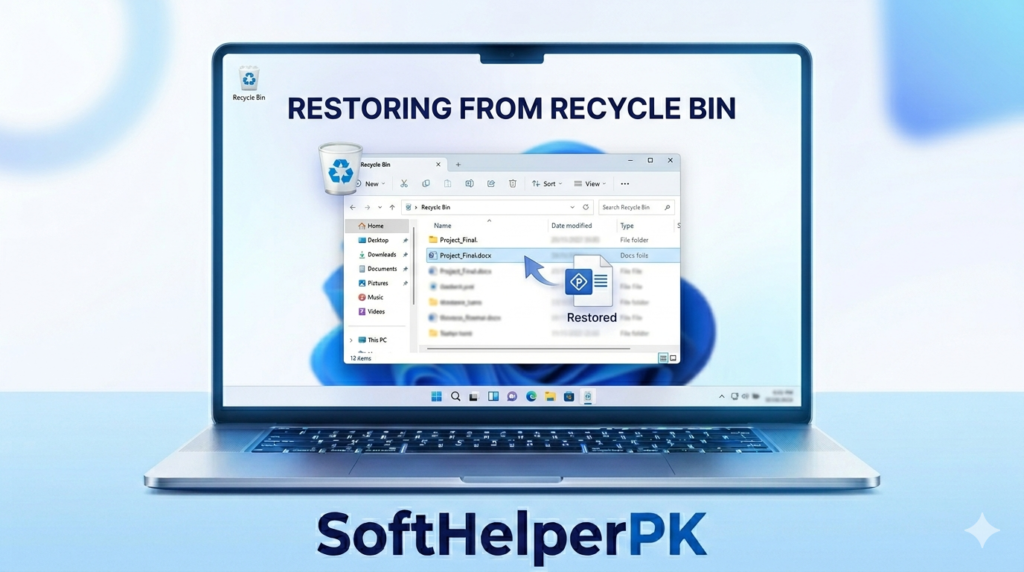
I know, I know. Obvious. But people panic and skip it. Open the bin, find the file, right click, Restore. Boom, it’s back where it was.
If it’s sitting in there, lucky you. You’re done. Close this page and go enjoy your day.
Try Previous Versions (Windows)
Did you ever turn on File History? Or had any backup running in the background? If yes, this is your golden ticket.
Right click the folder where the file used to live. Click “Restore previous versions.” Windows pulls up older snapshots of that folder. Pick one, restore, done.
Funny thing, a lot of people have this turned on and have no idea. Worth a look.
Look in Your Cloud Trash
Was the file in OneDrive? Google Drive? Dropbox? Then check the cloud trash, not just your computer.
These services hold deleted files for about 30 days. Sometimes more. Log into the actual website though, not just the desktop app. Find the “Trash” or “Deleted” section. Restore from there.
Free Software to Recover Deleted Files
Alright. Easy stuff didn’t work. The file is properly, genuinely deleted. Now we bring in the real tools.
These free tools to recover deleted files scan your drive for that ‘marked as free’ data and yank it back before it gets overwritten.
Recuva — Start Here
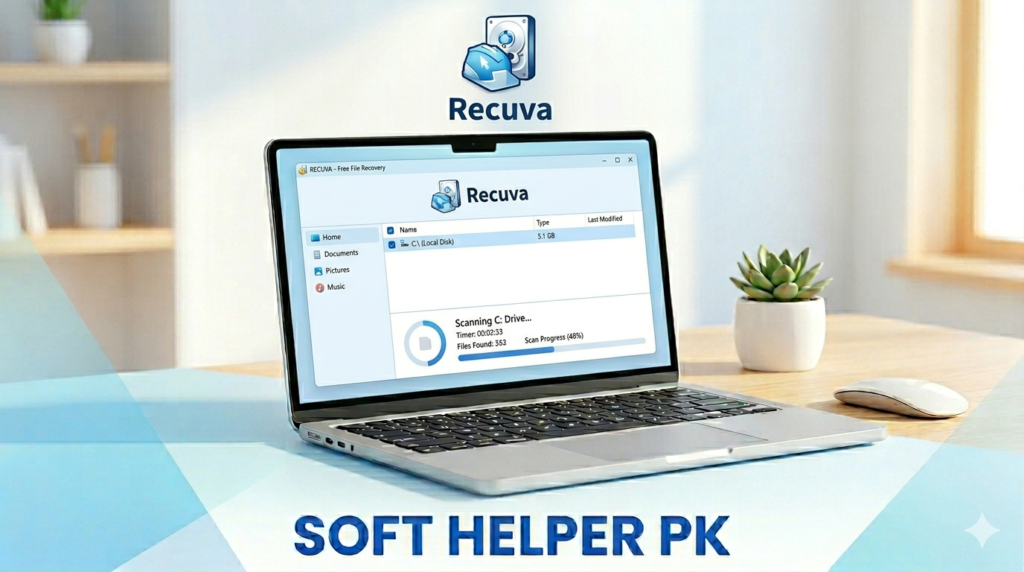
This is the one I tell literally everyone to try first. Free. Simple. Has a little wizard that holds your hand through the whole thing.
You pick what kind of file you lost, pick the drive, hit scan. The results show colored dots. Green dot? Good chance. Red dot? Eh, probably too late for that one.
There’s also a deep scan mode for when the quick scan comes up empty. For most “oops I deleted it” moments, Recuva just gets the job done. Download it from ccleaner.com/recuva.
PhotoRec — Ugly, But It Works
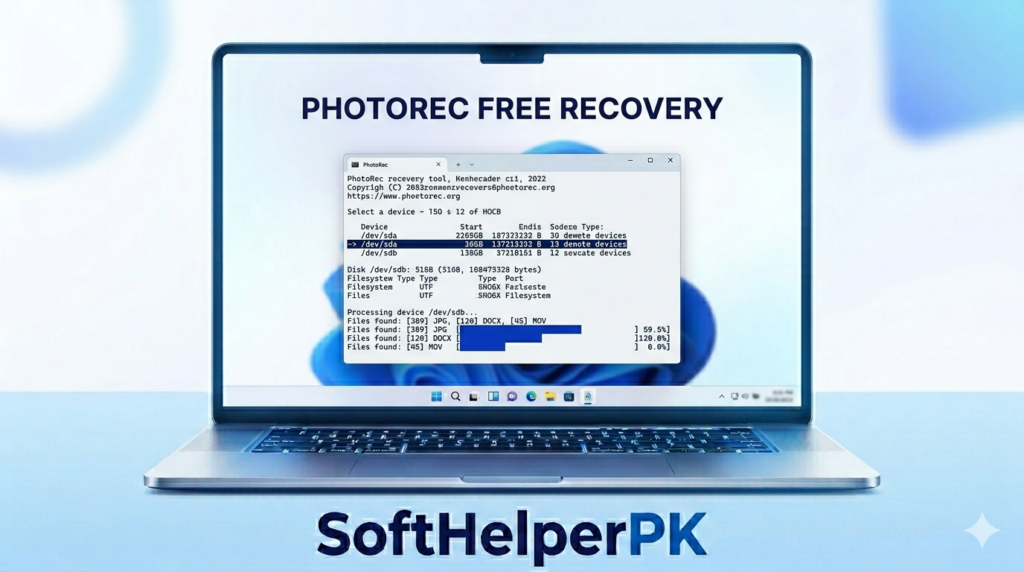
Not gonna lie. PhotoRec looks terrifying. It runs in this old command-line window, no nice buttons, nothing pretty about it.
But don’t run away. It’s one of the most powerful free recovery tools out there. Period. Works on Windows, Mac, Linux, everything.
And despite the name, it grabs way more than photos. Documents, videos, zip files, all of it. When Recuva gives up, this is your next move. Takes a bit of patience. Digs deeper than most paid tools do though.
Windows File Recovery (Microsoft’s Own Tool)
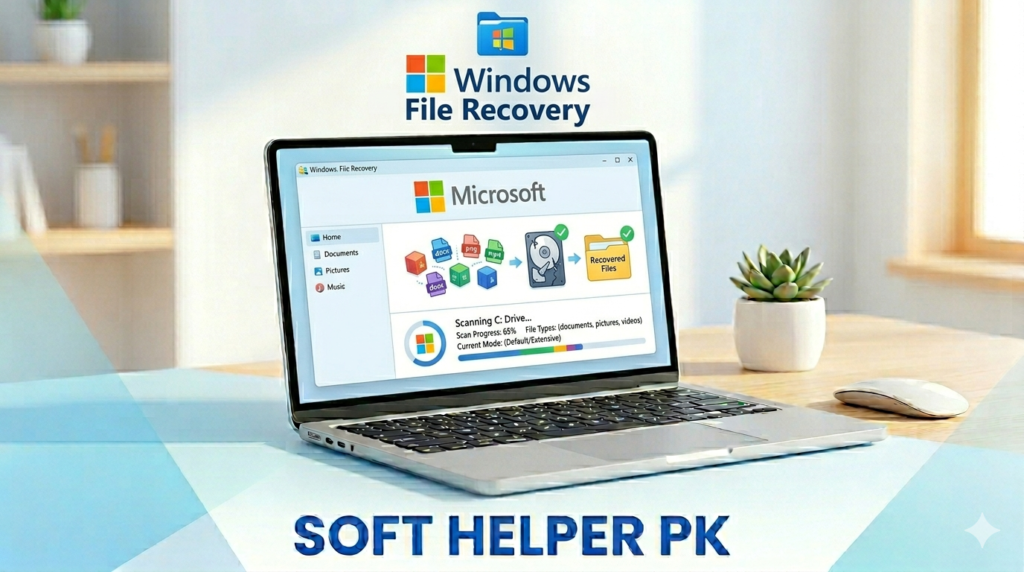
Bet you didn’t know Microsoft made one of these. Most people don’t.
It’s free, it’s official, and yeah, it’s also command-line based so not the prettiest. You grab it from the Microsoft Store and run a few recovery commands depending on what you lost. Keep this one in your back pocket.
So Which One Do You Actually Use
Don’t overthink this. Go top to bottom.
Recycle Bin first. Then previous versions. Then cloud trash. Only when all that fails do you reach for software. And start with Recuva because it’s the easiest by far. If Recuva can’t find it, then PhotoRec.
One thing decides everything here, and it’s time. The longer you keep using that drive, the worse your chances get. So if the file matters, stop touching the drive and start now. Like, right now.
Bottom line — you can recover deleted files free with the right tool, you just have to act fast.
A Few Tricks to Boost Your Odds
Install the recovery tool on a different drive than the one you’re recovering from. Only got one drive? Then put it on a USB stick instead. Installing it on the same drive might overwrite the exact file you’re trying to save. Ironic, right?
Same deal when you save the recovered files. Drop them somewhere else, an external drive or USB. Saving them back onto the same drive they came from is just asking for trouble.
And look, the real fix is prevention. Once your files are safe, set up a backup so you never sweat like this again. If your PC’s been acting slow lately, speeding up a slow PC is a smart next step. And keeping a free antivirus running helps stop the kind of malware that deletes or corrupts your files to begin with.
Final Thoughts
Losing an important file feels like the end of everything. For about ten seconds. Then you remember it usually isn’t.
Check the easy spots first. Let a free tool do the heavy work if you need it. And burn this into your brain: the second you realize a file’s gone, stop using that drive.
Move fast. More often than not, you’ll get it back. And you won’t spend a single rupee doing it.