
Introduction
Ugh, you know that feeling? You hit the power button and then just sit there. Waiting. My old PC was the worst for this. Honestly felt like it needed a coffee before it would wake up. Believe me. It took my old laptop five whole minutes to simply open its web browser!
The good news? You usually don’t need to buy a new computer. Most of the time you can speed up a slow PC yourself in a few minutes, for free, without being a tech expert. I’ve fixed dozens of slow machines for family and friends using these exact steps.
Let me walk you through what actually works — no confusing jargon, just simple fixes anyone can do.
Why Is Your PC Slow and How to Speed Up a Slow PC
To understand how to speed up a slow PC we must first understand what causes it. Mostly it’s just down to clutter. Over the years a computer collects bits and pieces of files and software we no longer use and also a crowded hard drive and often malware. It’s like having an old car that you have never serviced for years; it still works, but is nowhere near it’s best.
Here the fixes tackle these problems individually; work from top to bottom, you should notice a difference before you get to the bottom.
1. Turn Off Programs That Start Automatically
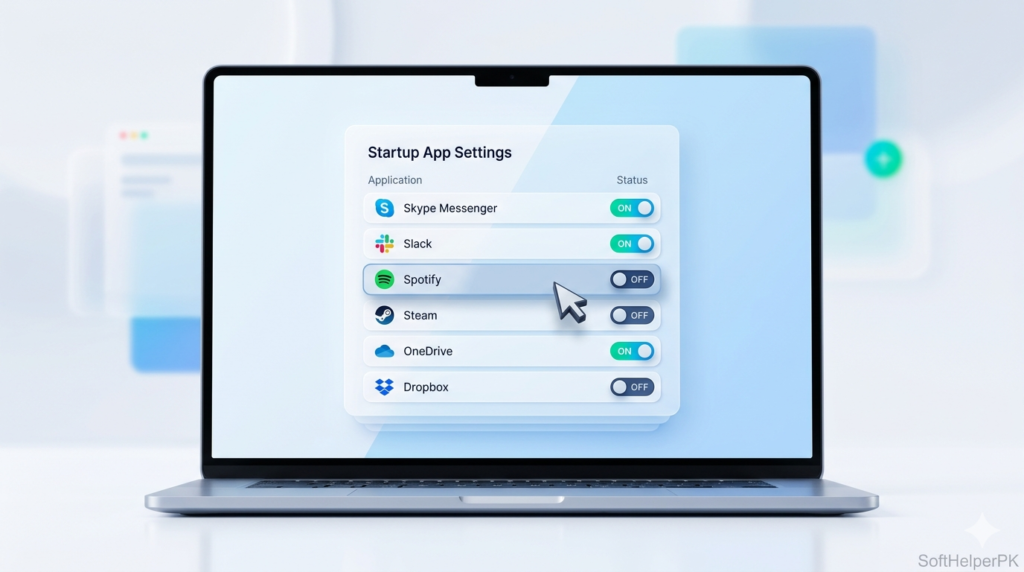
This is the big one, and honestly it fixed half the slow PCs I’ve ever touched. Tons of apps sneakily set themselves to launch the moment Windows starts — and they all fight for resources at once.
Just Press “Ctrl + Shift + Esc” for task manager, then go to Startup tab where all your startup programs will be displayed. Right-click any program that you don’t want on startup (such as Spotify, Discord, or any other updates) and click Disable button. You can always start these programs by clicking their names manually.
2. Clean Up Junk and Temporary Files
Your PC quietly piles up temporary files it doesn’t need anymore. Clearing them out is quick and safe.
To clean up your computer you should type Disk Cleanup in the Windows search menu. Then you need to click on the Disk Cleanup application to open it. Next you have to select the drive you want to clean. Most people use the C drive.
You have to wait for it to scan the Disk Cleanup application. After that you will see some boxes. You need to check the boxes for the files you do not want anymore like Temporary Files and the Recycle Bin.
When you are done checking the boxes you need to press the Clean button. I do this with my Disk Cleanup application every couple of weeks on my own computer. It really helps to keep my computer tidy, with the Disk Cleanup application. For a deeper clean, free tools work too — check our list of the best free PC software for some good options.

3. Free Up Disk Space
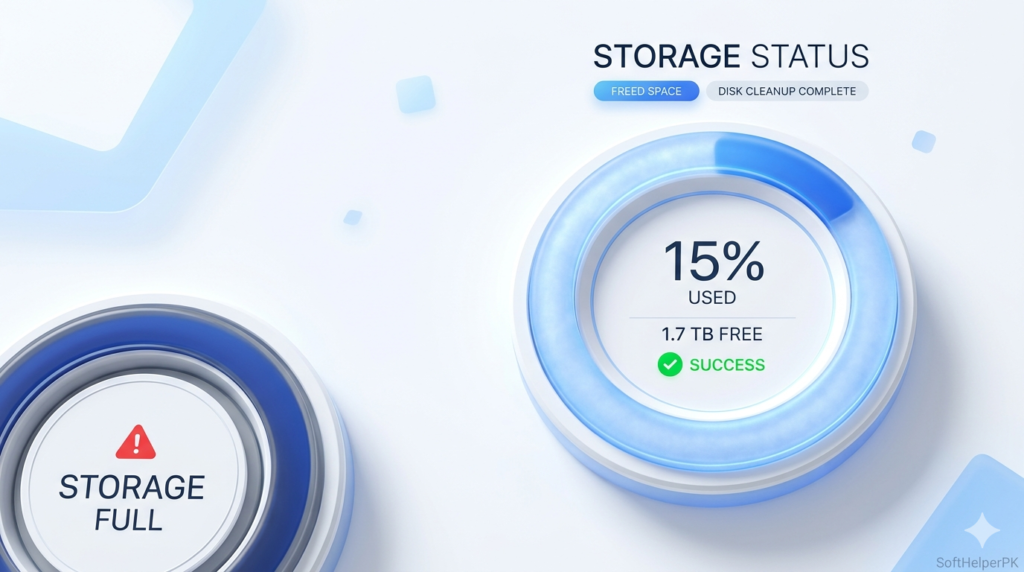
Here’s something a lot of people don’t realize — when your hard drive gets nearly full, Windows slows right down. It needs breathing room to work.
Organize your files and delete whatever isn’t necessary. Ineffective downloads, large video files, and older games you don’t use anymore. Move your photos and big files onto a USB or cloud storage. Try to keep at least 15-20% of your drive free — that breathing room actually matters. When I cleared about 30GB off my old laptop, the difference was instant. Felt like a different machine, honestly.
4. Uninstall Programs You Never Use
We all install stuff, use it once, and forget about it. Those programs sit there taking up space and sometimes running in the background.
Open Settings, go to Apps, and scroll through the list. Be honest with yourself — that video editor you used one time? Gone. Those three toolbars you don’t remember installing? Definitely gone. It frees up space and cuts down on background clutter.
5. Scan for Malware
Sometimes a slow PC isn’t just clutter — it’s something nasty hiding in the background. Viruses and malware love eating your resources.
Run a full scan with your antivirus. Windows Defender is built in and does a solid job. If you want a second opinion, a free Malwarebytes scan is great at catching stuff regular antivirus misses. I once “fixed” a friend’s painfully slow laptop just by removing a hidden miner that was secretly running. Removing hidden malware is often the quickest way to speed up a slow PC.
6. Restart Your PC (Properly)
Sounds too simple, right? But you’d be amazed. A lot of people never actually shut down — they just close the lid and walk away. That keeps everything running for days.
A proper restart clears your PC’s short-term memory and closes background junk. If your computer has been on for a week straight, give it a real restart. Sometimes that alone is the whole fix.
7. Turn Off Visual Effects
Windows has all these fancy animations — menus fading, windows sliding, little shadows everywhere. Looks nice, sure, but it eats performance, especially on older PCs. Honestly you won’t even miss them.
Just search “Adjust the appearance and performance of Windows” and pick “Adjust for best performance.” Yeah, your PC looks a tiny bit plainer after. But on my old laptop? Menus started popping open instantly instead of lagging. Worth it.
8. Keep Windows Updated
I know, update reminders are annoying. But they often include performance fixes and security patches that genuinely help.
Go to Settings, Windows Update, and install whatever’s waiting. Just do it when you’re not busy, since it sometimes needs a restart. Keeping things updated also keeps you safer.
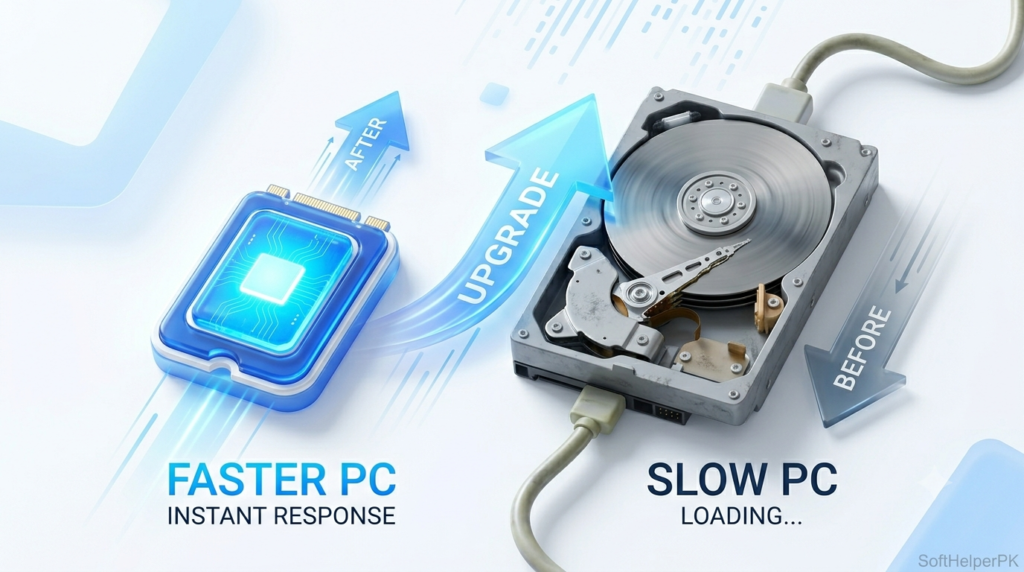
9. Upgrade to an SSD (The Real Game-Changer)
If you actually want to speed up a slow PC for good, this is the one. Okay, it’s not free — I’ll be honest about that. But it’s hands down the biggest upgrade you can make. If your PC still runs on one of those old spinning hard drives, switching to an SSD is night and day.
I threw a cheap SSD into an ancient laptop once and wow — it felt brand new. Boot time dropped from like two whole minutes to maybe ten seconds. If nothing else here fully does the job, save up for this one. Trust me.
10. Add More RAM
If yAre you the type who keeps 20 browser tabs open while five other apps run? Yeah, you probably just need more RAM. That’s basically what lets your PC handle a bunch of stuff at the same time without choking.
Pop open Task Manager, check the “Performance” tab, and see how maxed out you are. If it’s always full, more RAM is a pretty cheap fix and makes everything feel smooth. Honestly made a massive difference on my work PC.
Frequently Asked Questions (FAQs)
Why is my PC suddenly so slow?
Usually it’s a packed hard drive, too many startup programs, or some hidden malware. Try the first few fixes — one of them is almost always the troublemaker.
Will these tips work on a laptop too?
Yep, every single one works on both laptops and desktops running Windows 10 or 11.
Is it safe to disable startup programs?
Totally safe. You’re just stopping them from launching on their own — you can still open them whenever you want.
Do I need to pay for any software to speed up my PC?
Nope. Almost everything you need to speed up a slow PC is already built into Windows and completely free.
Final Thoughts
A slow PC is annoying, but most of the time it’s a quick fix. Honestly? Just turning off startup programs and clearing some space sorts it out for most people. Work through this list from the top and you’ll feel a difference fast.
Start with the free stuff before spending a single rupee. These simple steps are all most people need to speed up a slow PC and keep it running smooth.

2 responses to “How to Speed Up a Slow PC in 2026 (10 Easy Fixes)”