
Ever tried to record your screen and realized you have no idea how? Maybe you wanted to make a tutorial, save a video call, or capture some gameplay. And then every recorder you find either slaps a giant watermark on your video or asks for money. Frustrating, right?
I’ve tested a bunch of these over the years for my own videos, and honestly most are junk. But a few are genuinely good and completely free. So here’s my honest list of the best free screen recorders you can use in 2026 — no watermarks, no time limits, no nonsense.
If you make videos, you might also like our guide on the best free video editing software to go with these.
Why You Need Free Screen Recorders in 2026
Screen recording is everywhere now. Teachers record lessons, gamers share clips, and regular people make how-to videos for YouTube. A good recorder turns your screen into content in seconds.
The problem? Most free ones cripple you — short time limits, ugly watermarks, or laggy recordings. The tools below actually let you record properly without paying a rupee. Let me show you the ones worth your time. That’s exactly where free screen recorders save the day.
1. OBS Studio — Best Overall (and Totally Free)
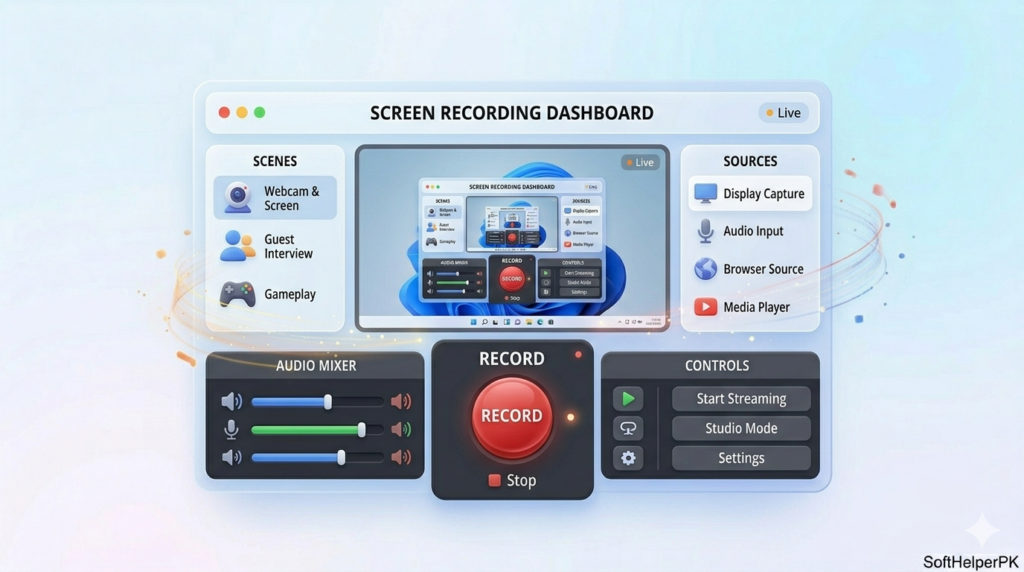
OBS Studio is the one serious creators swear by, and the best part is it’s completely free with zero limits. No watermark, no time cap, nothing.
I’ll be honest — when I first opened it, it looked a bit scary with all the buttons. But after one YouTube tutorial I got the hang of it. It records your screen in great quality and even handles live streaming. The only downside is that learning curve at the start. Push through it and it’s brilliant.
2. ShareX — Best for Quick Clips
ShareX is a hidden gem. It’s free, open-source, and packed with features — screen recording, screenshots, even quick editing.
I use this when I just need a fast clip without all the OBS setup. It records, saves, and even uploads in one go. Downside — like OBS, the interface feels a bit busy at first. But once you set it up the way you like, it’s super handy.
3. Microsoft Game Bar — Best Built-In Option
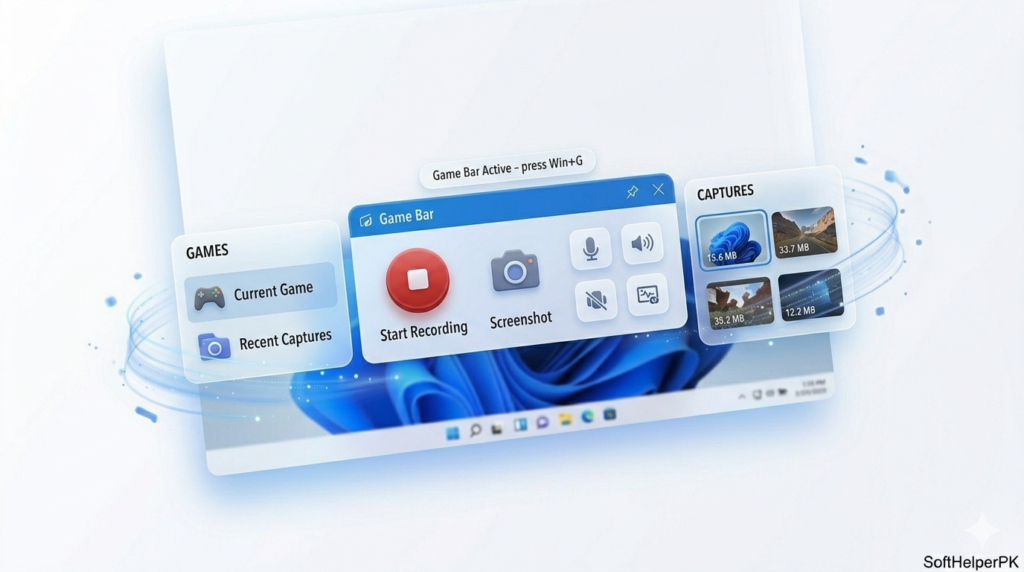
Here’s one a lot of people don’t know about — Windows already has a screen recorder built in. Just press Windows + G and it pops up. No download needed.
I use this all the time for quick recordings because it’s literally already there. It’s great for capturing gameplay or a quick app demo. The catch is it’s basic — it won’t record your full desktop or file explorer, just apps and games. But for fast jobs, it’s perfect.
4. Loom — Best for Work and Tutorials
Loom is the one I reach for when making quick explainer videos for work. It records your screen and your face in a little bubble at the same time, then gives you a shareable link instantly.
Super handy for sending someone a “here’s how to do it” video instead of typing a long message. The free version limits video length and how many you can store, but for short tutorials it’s more than enough.
5. Bandicam Free — Best for Gameplay
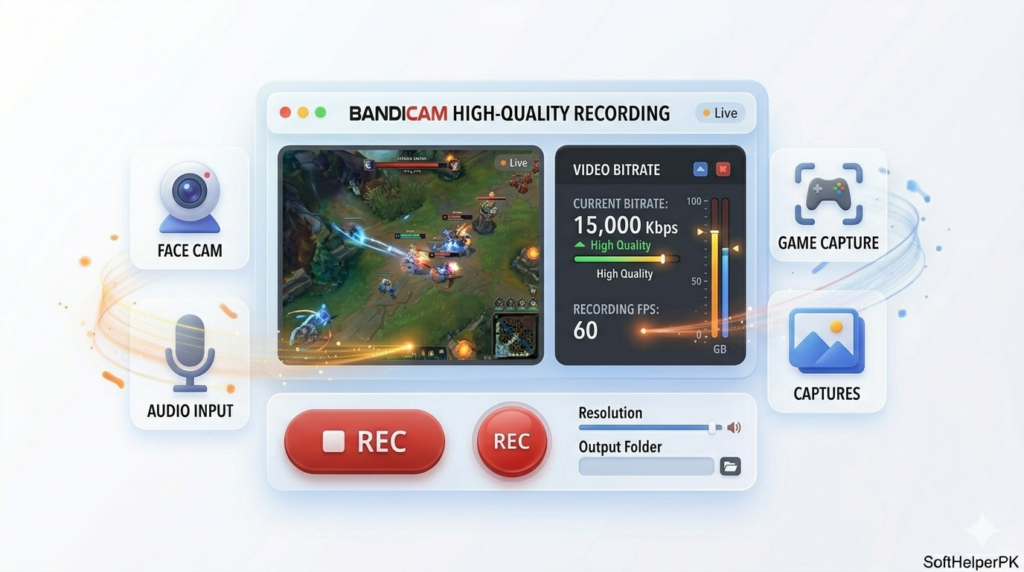
Bandicam is a favorite among gamers because it records smooth, high-quality gameplay without slowing your PC much. The free version does have a watermark and a time limit, but the recording quality is genuinely excellent.
I tested it on an older PC and was surprised how smooth it stayed. If you mostly record games and don’t mind the free-version limits, it’s a strong pick. You can grab it from the official Bandicam website.
Which One Should You Pick?
Don’t overthink it. Quick guide:
Want the best free recorder with no limits? OBS Studio. Need quick clips fast? ShareX. Just want something already built in? Microsoft Game Bar. Making work tutorials with your face? Loom. Recording gameplay? Bandicam.
Honestly, for most people OBS Studio plus the built-in Game Bar covers everything. Students making projects might also like our best free software for students.
Frequently Asked Questions (FAQs)
Are these screen recorders really free?
Yes, all of them have free versions. OBS Studio and ShareX are completely free with no limits at all. The others have small free-version limits but still work great.
Which free screen recorder has no watermark?
OBS Studio, ShareX, and the built-in Game Bar all record without any watermark, totally free.
Can I record my screen on Windows without downloading anything?
Yes. Just press Windows + G to open the built-in Game Bar — it records apps and games with no download needed.
Do screen recorders slow down your PC?
Some do, especially while recording games. OBS and Bandicam are optimized to stay smooth, but a weaker PC may lag a little during heavy recording.
Final Thoughts
You really don’t need to pay to record your screen anymore. These free screen recorders cover everything from quick clips to full tutorials and gameplay, without costing a thing.
My advice? Start with OBS Studio if you’re serious, or the built-in Game Bar if you just need something quick. Pick one, mess around with it for ten minutes, and you’ll be recording like a pro. Try one today.